
Azuki Minaduki
-
Posts
20 -
Joined
-
Last visited
Azuki Minaduki's Achievements






-
 Congrats! Great score my guy!
 -
Congrats on the score! Glad to see that dice batch got some good use after all:P
-
CCD0 4725, CCD1 4625 | Ice water ~5°C temp
-
VCore was 1.575V, Cores 2 and 5 were both OC'd to 4850.
-
Thanks! Much appreciated.
-
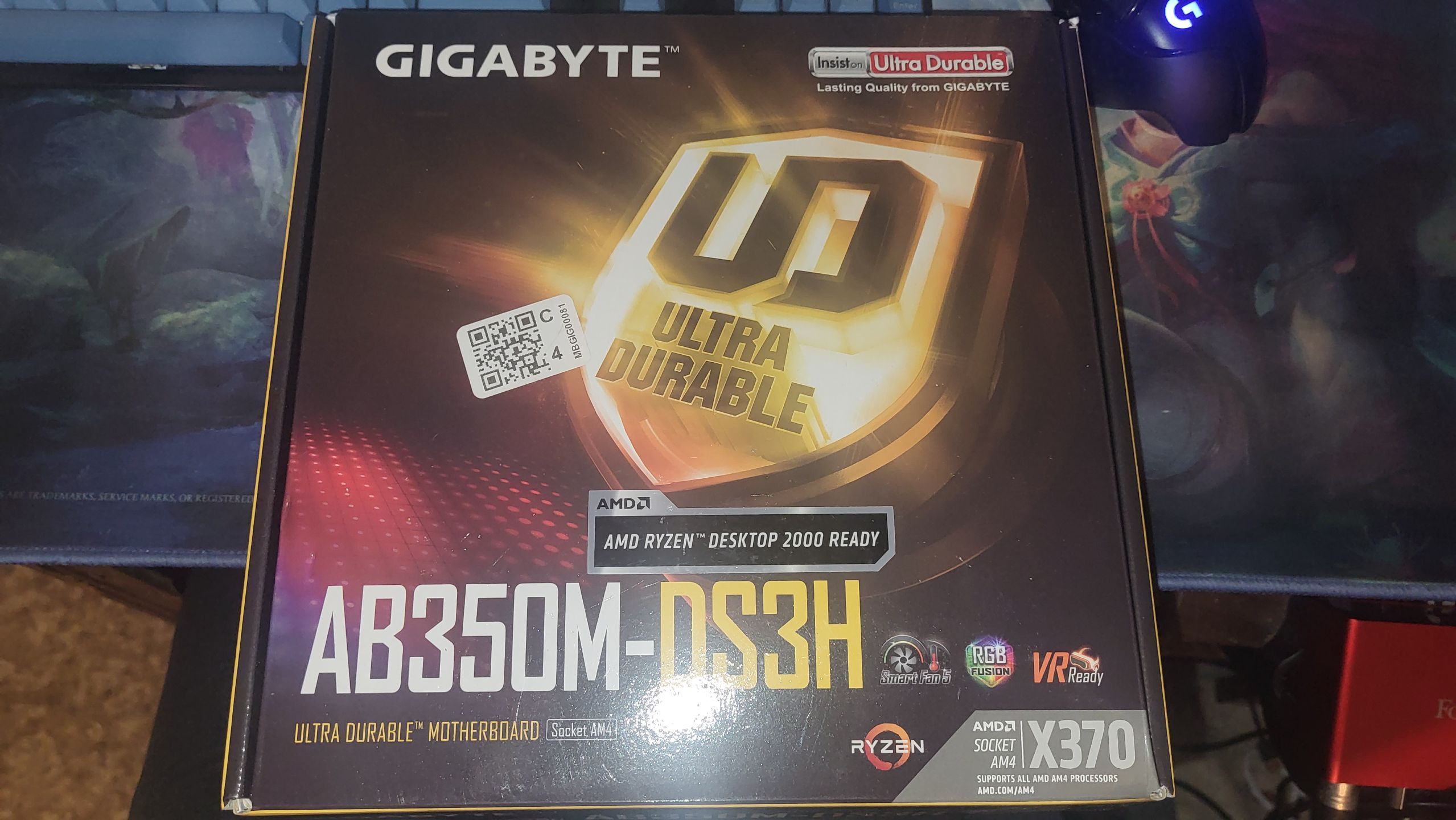
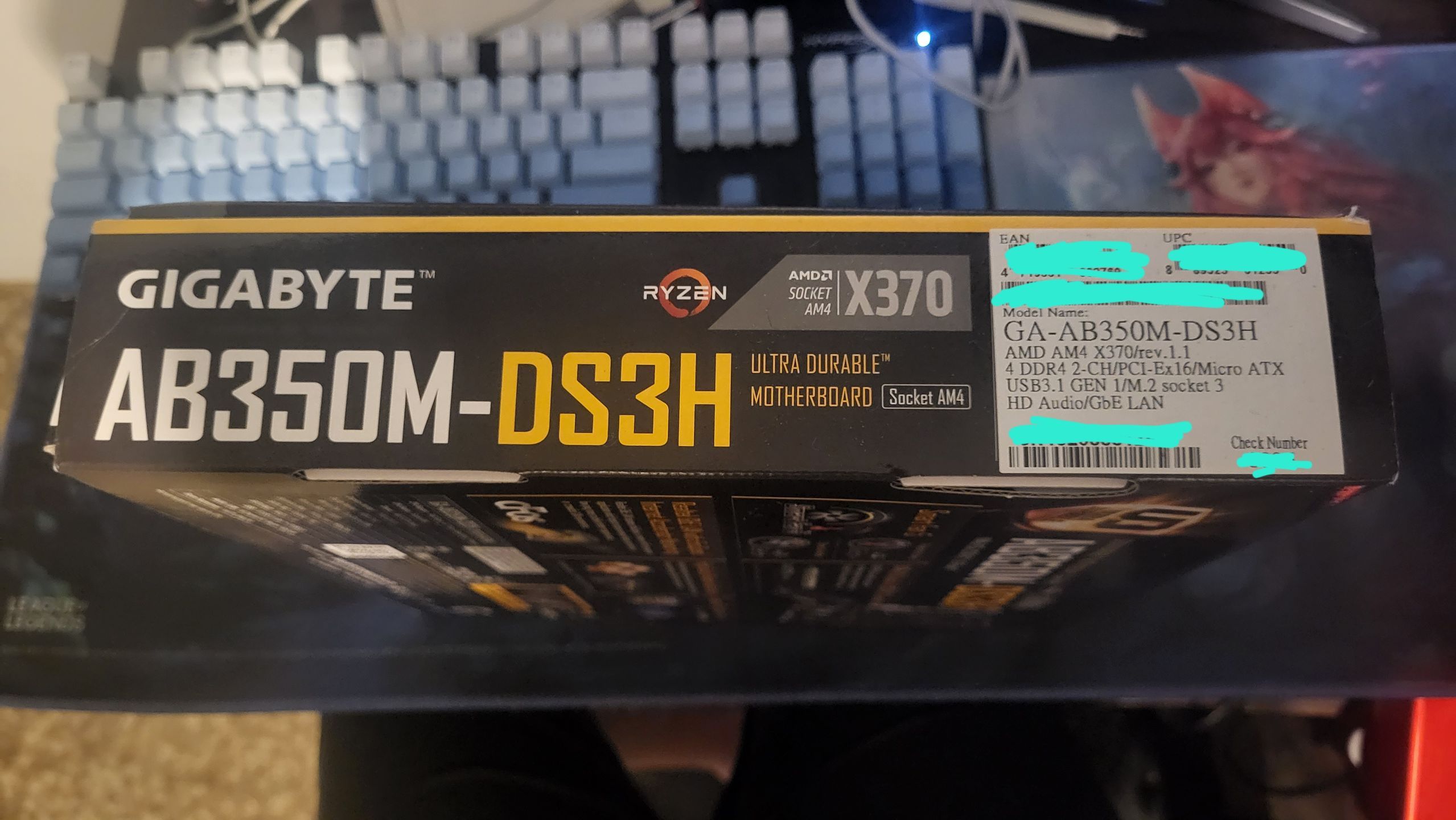
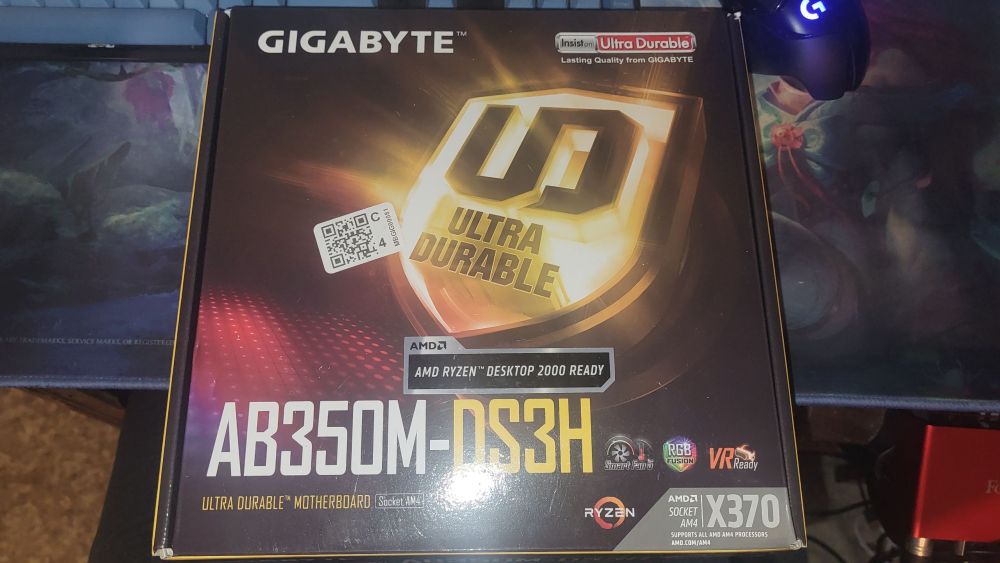
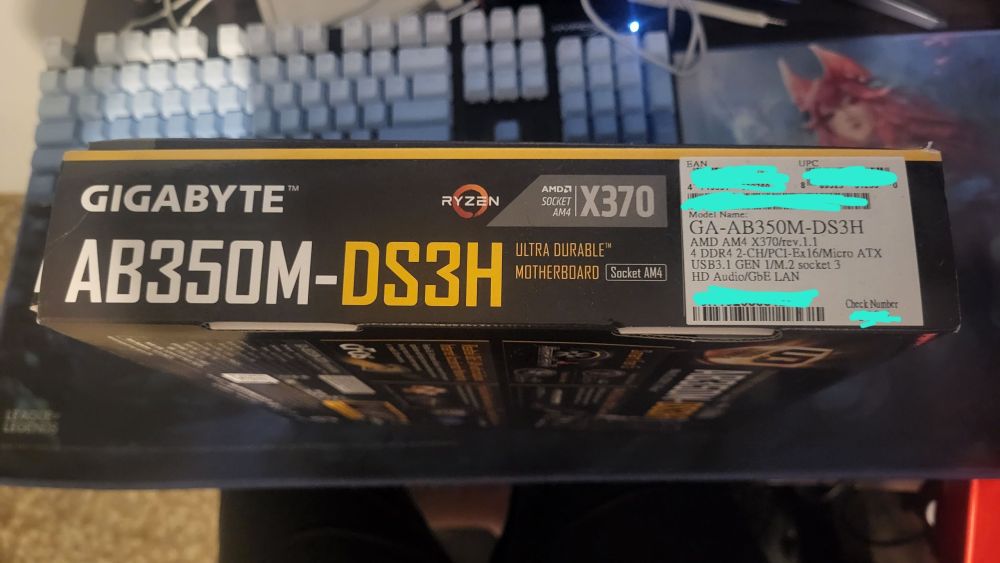
Heya, would it be possible to add the Gigabyte AB-350M-DS3H (Rev. 1.X)? Here's Gigabyte's official page for it: https://www.gigabyte.com/Motherboard/GA-AB350M-DS3H-rev-1x#kf I saw that the X370 version (which is the Rev 1.X) isn't on HWBot, and so I've been having to use the B350 chipset for my subs. I've attached a few pics of the physical box (with the serial + check numbers, EAN and UPC blocked out for privacy)
-
Azuki Minaduki changed their profile photo
-
Both CCD 4850 @ 1.45v Vcore | 3200 C16 XMP
-
4925 All core|1.425v Vcore|1.725v VDIMM
-
CCX0 4475 | CCX1 4550 | 1.4875v Vcore
-
CCX0 4450 | CCX1 4500 | 1.4875v Vcore
-
5.1GHz on Core #7 | 1.3875v max Vcore in RM
-
CCD0 @ 4.85GHz, CCD1 @ 4.875GHz | Vcore @ 1.35v | Avg temp of 66°C
-
As of 4:33pm EDT I do not have pictures of the system. When I return home I will submit them
-
Marked as "Unchecked" as I had to use XOC mode for CPU-Z to validate
-
CO of -30 all core