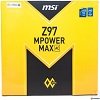
ch0c Posted September 13, 2014 Share Posted September 13, 2014 Any other users? I wouldn't mind compiling a thread with a guide, posts from other users, issues, etc. All currently unofficial and free to say/do what we want. So, anyone with links, post them here. Links to other threads, online guides, wisdom from other users, post them here, and I will begin to compile and order them. Any users can post here, lets get the discussion going in an (official) unofficial thread. Post link's to results, BIOS's, settings files, etc etc with anything pertaining to the z87/97/99? MSI *Power (OC Series) Motherboards. No I am definitely not employed by MSI or any affiliates. Freedom is great. Quote Link to comment Share on other sites More sharing options...
Recommended Posts
Join the conversation
You can post now and register later. If you have an account, sign in now to post with your account.