
stummerwinter
-
Posts
837 -
Joined
-
Last visited
stummerwinter's Achievements

Newbie (1/14)
11
Reputation
-

The Official Country Cup 2018 thread
stummerwinter replied to Leeghoofd's topic in HWBOT Competitions
Where can I find the rule: only 1 score per user per stage? -
The Official Country Cup 2018 thread
stummerwinter replied to Leeghoofd's topic in HWBOT Competitions
Question: my Dothan-submission for referance clock (score) does not appear in the ranking: competition ranking It is recorded as belong to ranking, see top of the screen shot: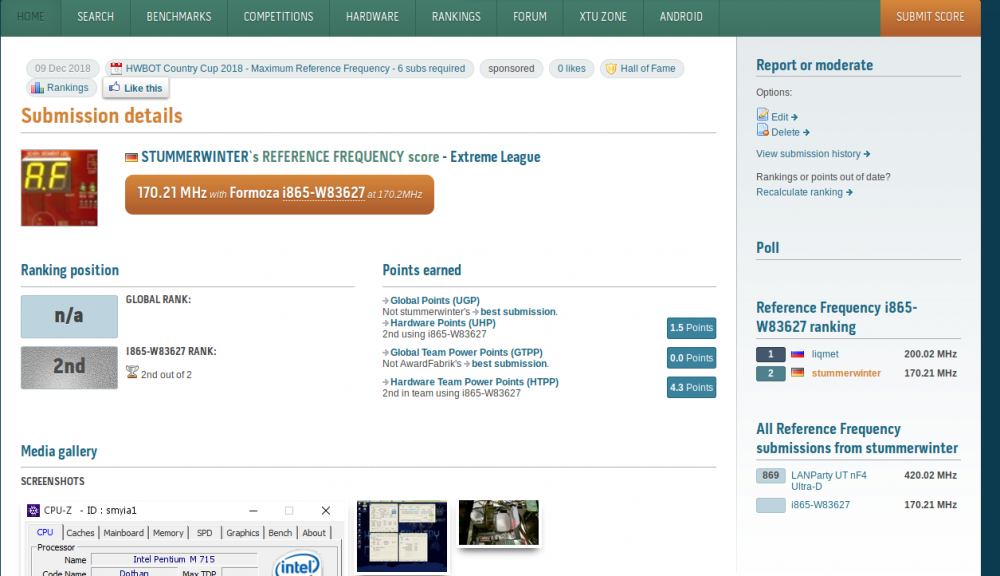
-
hey Bro...still benching, nice to see...:-)
-
The BH-5 like cold AIR to get more stable...did with ghetto pot on these 280 2-2-2-5 1M...
-
SOLD
-
Pending...rbuass was first...(via pn)
-
For sale: sold - very good container for high loads - screws and thermo couple included - used only once - isolated with aramflex Questions? Also on: HWL
-
Still know a little 3D01... Love this benchmark...
-
stummerwinter - Core i7 4790K @ 5498MHz - 1441 marks XTU
stummerwinter replied to Bulshooter's topic in Result Discussions
Thanx... -
Nice! So CPU is running again!
-
Dancop - Core i7 4770K @ 6753MHz - 9sec 750ms PiFast
stummerwinter replied to der8auer's topic in Result Discussions
nice, but expect much more... -
Even as LN2 slave it was fun to taste the smell of LN2, had a great time...
-
The official GIGABYTE Target OC thread.
stummerwinter replied to dinos22's topic in HWBOT Competitions
Easy... We had a similar competition on a bench session, but: target score was unknown UNTIL start of the competition... Idea: 1. increase time frame for submit up to eg 24 h 2. timeframe can be adjusted from stage to stage for every reagion (EU / US / ASIA) - let's say first stage starts at 0800 am CET, second 0400 pm CET, third 0000 am 3. target unknown, maybe just give a range - secret trarget is eg 80.000 3D03 and just a range from 60.000 ~ 100.000 is published to prepare the right hardware => first hit is the winner, or the closest score after 24 h for shure, these 24 h are though, but can also be changed down to 4 h or 8 h... -
The official GIGABYTE Target OC thread.
stummerwinter replied to dinos22's topic in HWBOT Competitions
Really? What a surprise... -
The official GIGABYTE Target OC thread.
stummerwinter replied to dinos22's topic in HWBOT Competitions
Nice idea, nice contest, but bad implementation... When it's only about knowing server lag and multi upload, I have to say: HOMEWORK NOT DONE!