
Leeghoofd
-
Posts
12868 -
Joined
-
Last visited
-
Days Won
635








Leeghoofd's Achievements






-
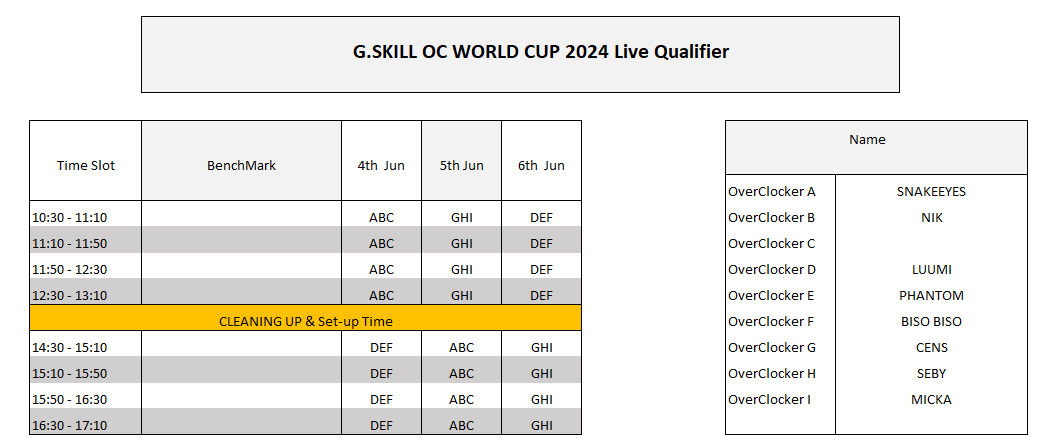
 Slot Selection Time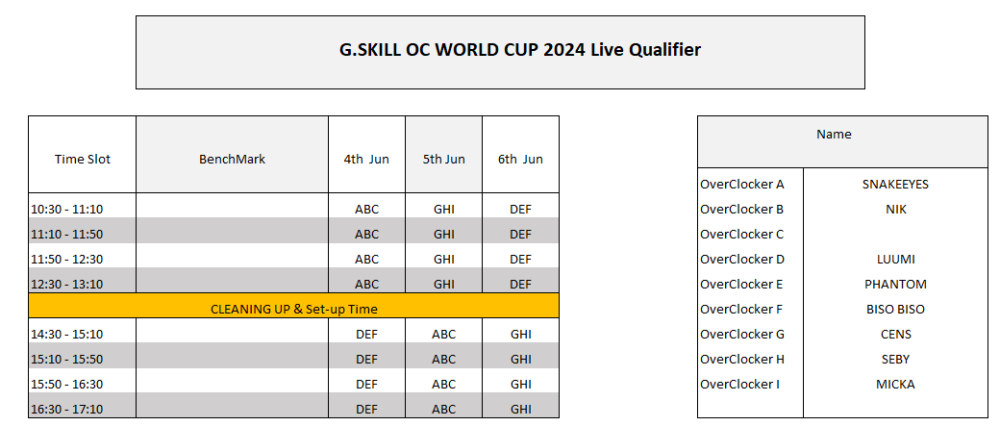
-
interest survey for a xeon / opteron / epyc competition
Leeghoofd replied to skulstation's topic in HWBOT Competitions
limit to 2 processors ? -
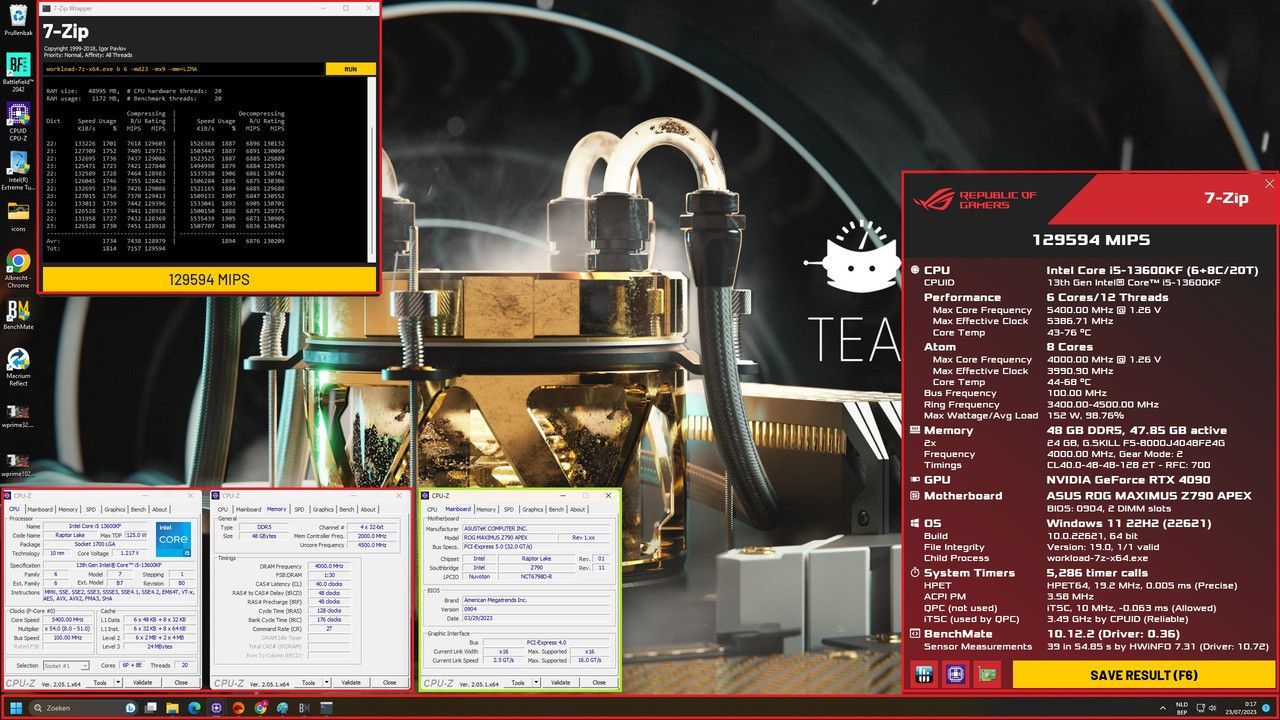
leeghoofd - Core i9 10900K @ 6303.1MHz - 128602 MIPS 7-Zip
Leeghoofd replied to unityofsaints's topic in Result Discussions
Thx, CPU can do a few MHz more, but it always CBs at -150. No full pot on this one Vdimm was 1.8, SA 1.4 -
very nice man, good job!!!
-
briliant score Ale!!
-
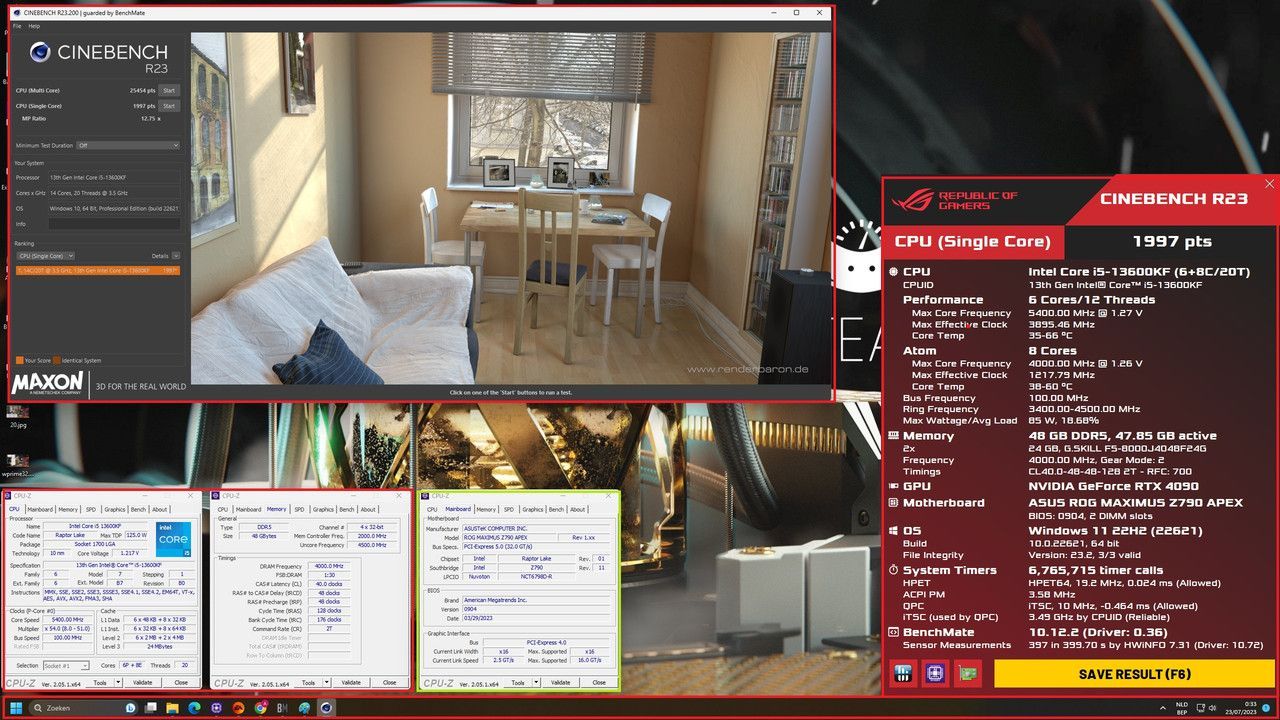
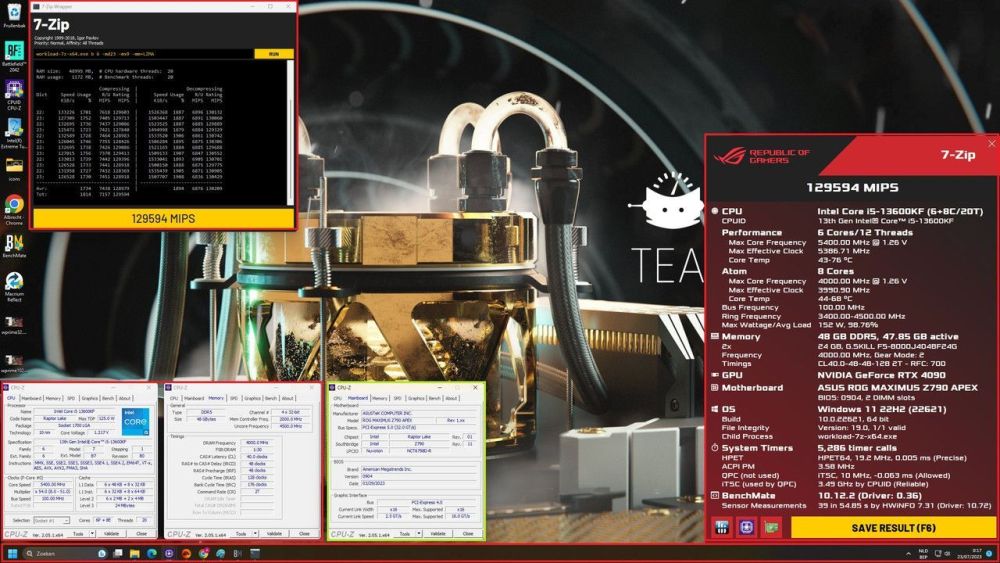
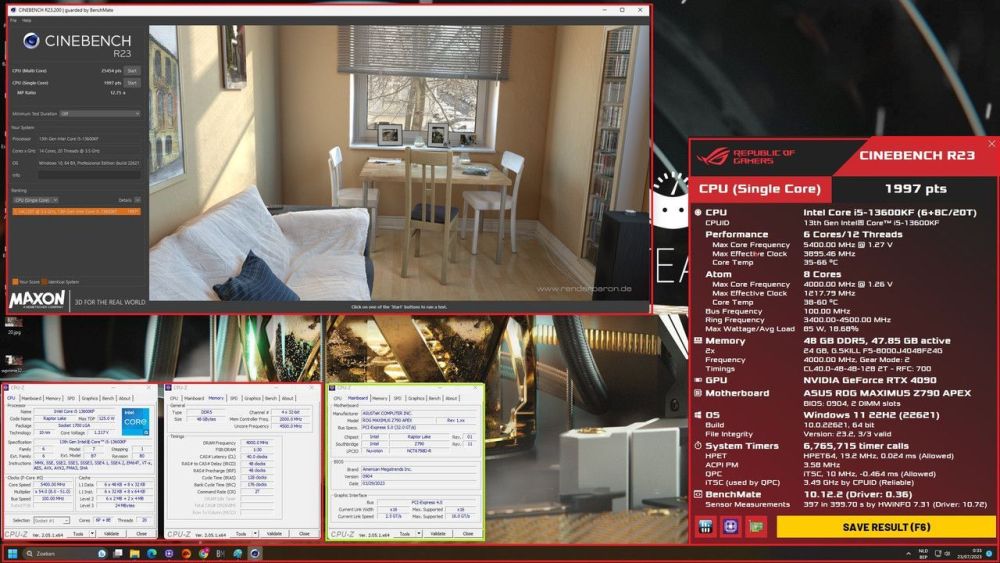
Your scores got reported for missing CPUZ tabs for CPU and memory. Plz check out the rules and sample screenshots at : https://hwbot.org/benchmarkRules
-
Your scores got reported for missing CPUZ tabs for CPU and memory. Plz check out the rules and sample screenshots at : https://hwbot.org/benchmarkRules
-
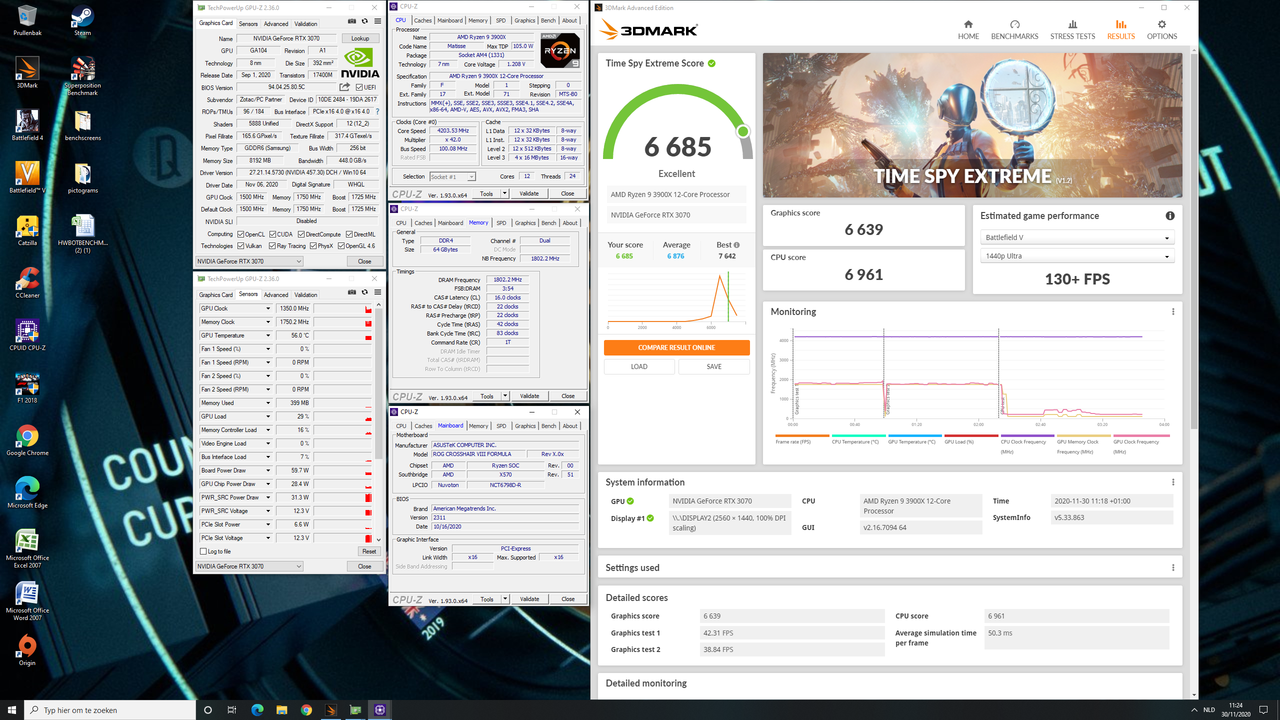
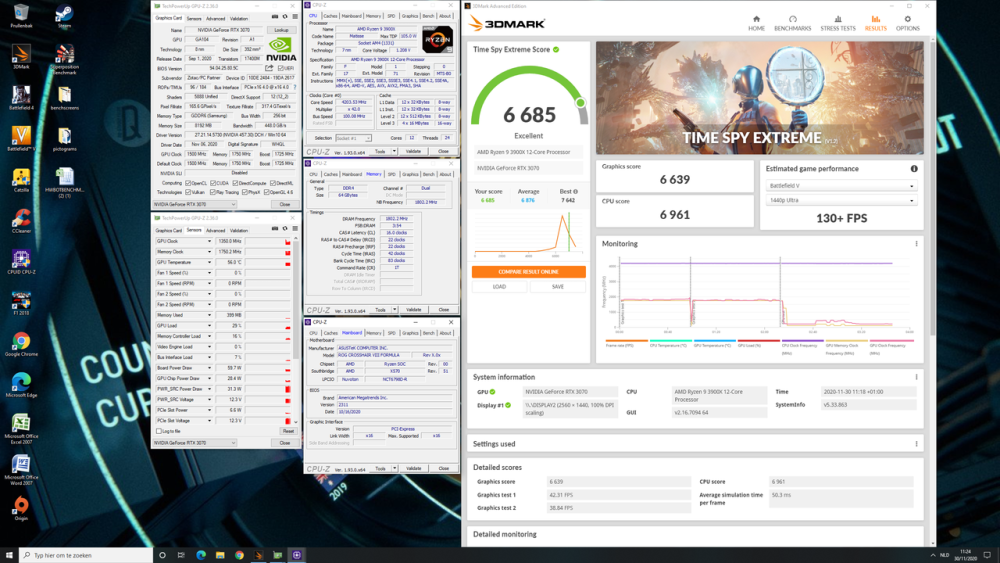
Your score got reported for incorrect verification screenshot: Missing CPUZ tabs for CPU and memory Missing GPUZ tab Check the rules and sample screenshot at: https://hwbot.org/rules?referenceId=5179
-
wrong background Sharon
-
Always add CPUZ tabs for CPU and memory to each 2D screenshot, even when using BenchMate. For 3D also a GPUZ is required. Other detectiin software is not allowed. Check out the rules at: https://hwbot.org/benchmarkRules
-
Always add CPUZ tabs for CPU and memory to each 2D screenshot, even when using BenchMate. For 3D also a GPUZ is required. Other detectiin software is not allowed. Check out the rules at: https://hwbot.org/benchmarkRules
-
The official Push the Hardware compo 3D Thread
Leeghoofd replied to Leeghoofd's topic in HWBOT Competitions
Lots of scores got reported for : Usage of CPU-Z version 2.09 or newer Usage of GPU-Z version 2.55 or newer For 3DMark Cloudgate use latest updated version and Systeminfo 5.68 or newer Incorrect background -
Very nice score there!!
-
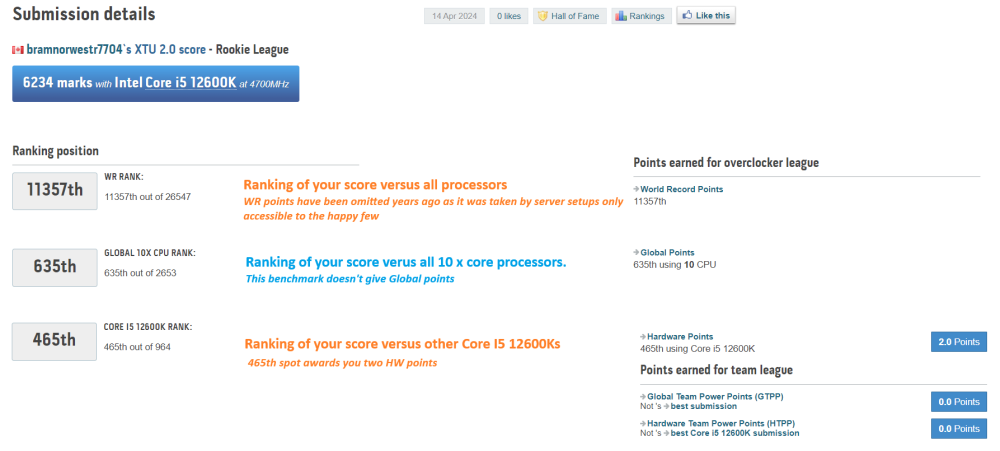
Read more here:
-
its better to add a GPU-Z iso a of a CPUZ master Obi wan