
qef
-
Posts
39 -
Joined
-
Last visited
qef's Achievements






-
up
-
I have a processor myself, I offered it to the ts
-
7960x price?
-
Hi , memory solved. MB in place
-

-
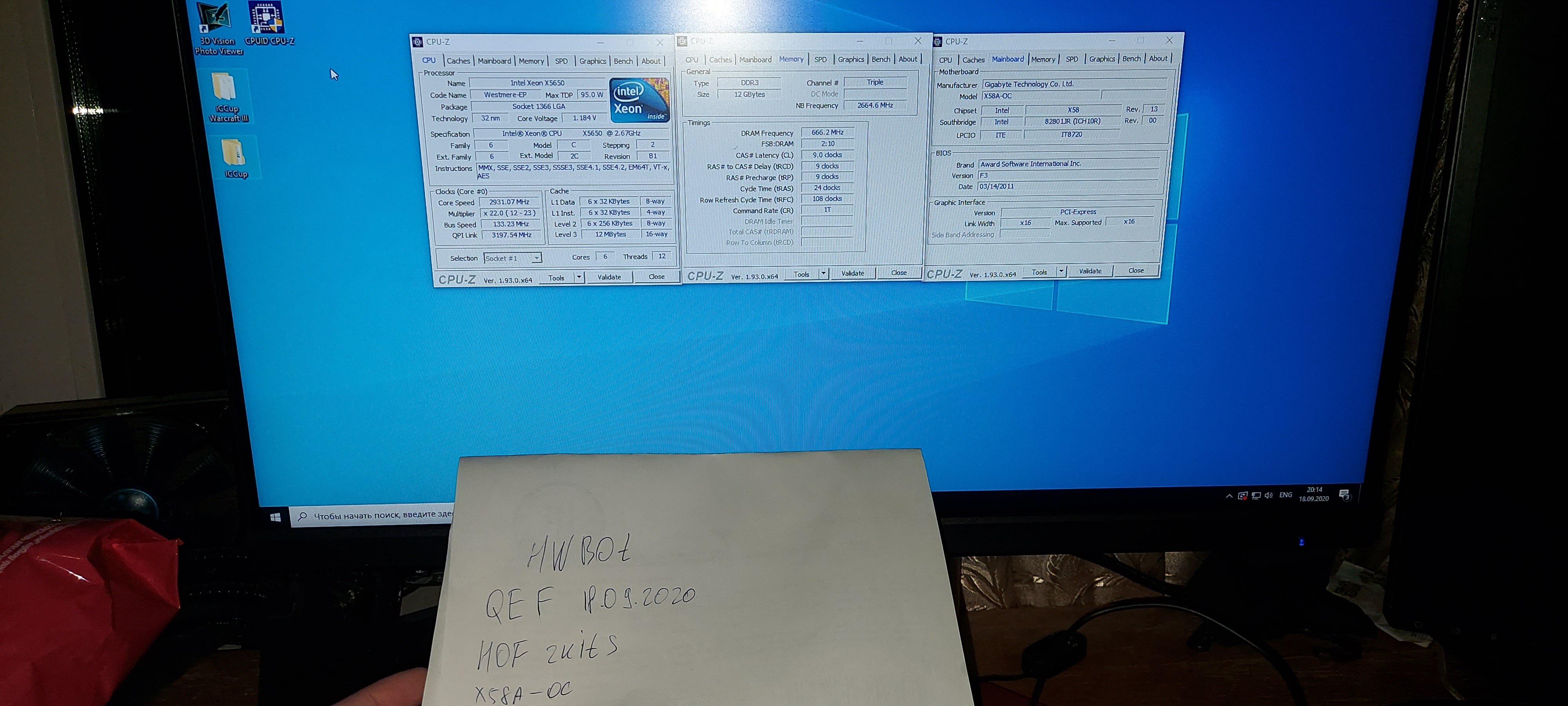
hello everyone, wildly sorry that some of the positions without a photo, at the expense of memory, I attached a screen with tm5. now the stand is sold. if necessary, I will ask a friend to collect it, and run it again on the same settings. I will post photos of other positions a little later.
-
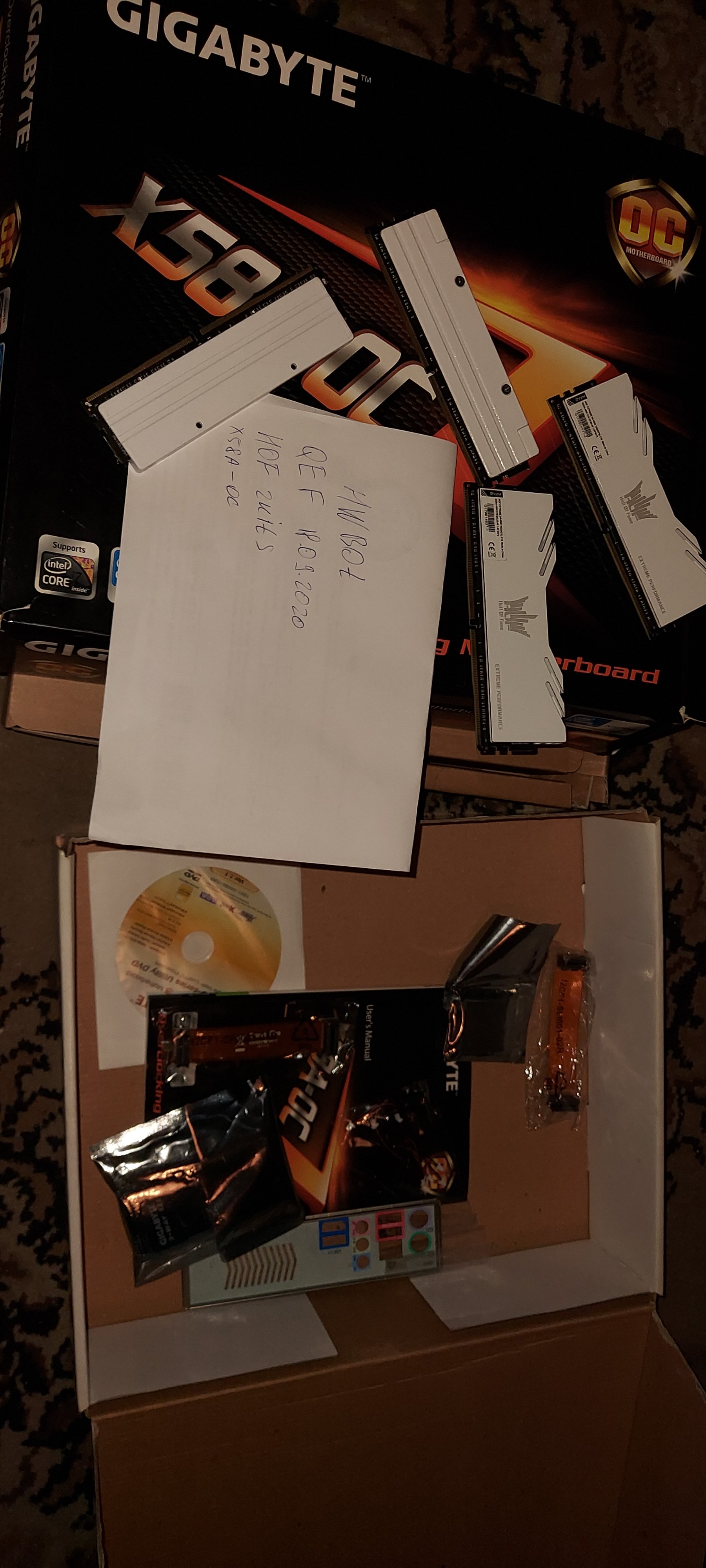
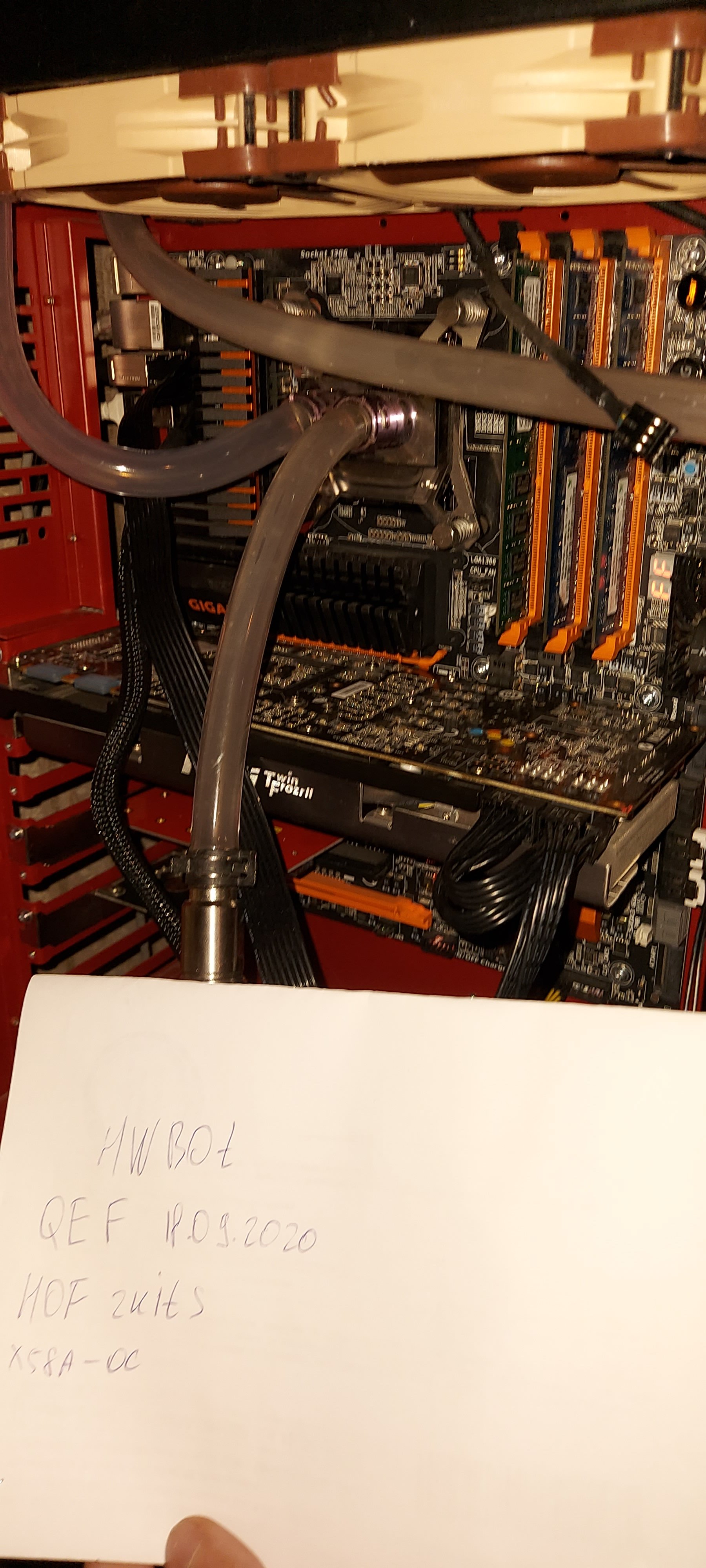
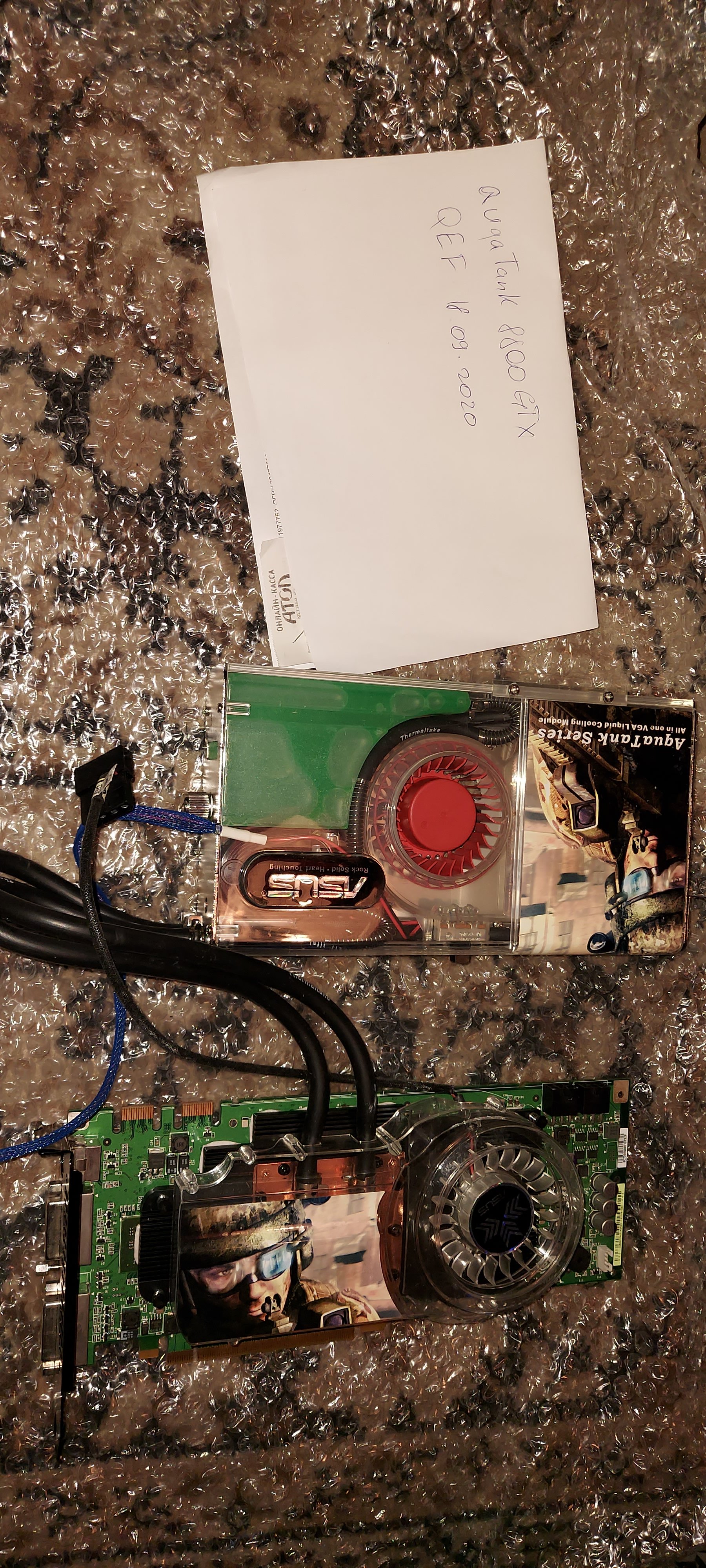
Gigabyte x58a-oc full set not use ln2 +х3670 not binned 200$ Asus AquaTank GTX8800 with watercool only card https://www.techpowerup.com/gpu-specs/asus-8800-gtx-aquatank.b625 250$
-
Thanks Comino/ Result by Comino Decryptum!
-
SuperO - Core i9 10900K @ 7548.2MHz - 7548.15 mhz CPU Frequency
qef replied to TerraRaptor's topic in Result Discussions
Very Nice -
7590x2 price?
-
waterblock
qef replied to NATA 58's topic in Skylake/Kaby Lake/Coffee Lake (-X) (Z170/Z270/Z370/X299) OC
Ek suprimacy universal mounting -
but for me, the overclock will die soon enough, as more and more stones and restrictions are imposed by manufacturers. In addition, for normal results, selected components are required. Which price is space. As for attracting users, we must actively work with vendors. But I think the vendors are no longer interested. Since components for acceleration take 3.5 cripples. Serve everyone rgb now and that would be more. Even on such mothers as apex, gene there is RBG, although for me it did not give up there at all.
-
sornning - Core i9 9900KF @ 7423.5MHz - 7423.46 mhz CPU Frequency
qef replied to jabski's topic in Result Discussions
How many cpu you try to finde that one?